
In addition to having the best weapons, you need to survive and excel. Call of Duty: Black Ops 6 You will need to adjust your audio settings accordingly. Fine-tuning your audio will allow you to hear enemy footsteps more clearly, making it easier to track their movements and avoid being caught off guard, especially when under constant fire.
This is especially important considering the significant audio changes Treyarch has implemented: improving spatial awareness, absorbing sounds in different environments, and amplifying key sounds for better gameplay perception.

relevant
CoD Black Ops 6: Best Controller Settings
Check out the best controller setups for Call of Duty: Black Ops 6, including the aim assist, movement, button layouts, and more you need to dominate the game.
Best Audio Settings for Call of Duty: Black Ops 6
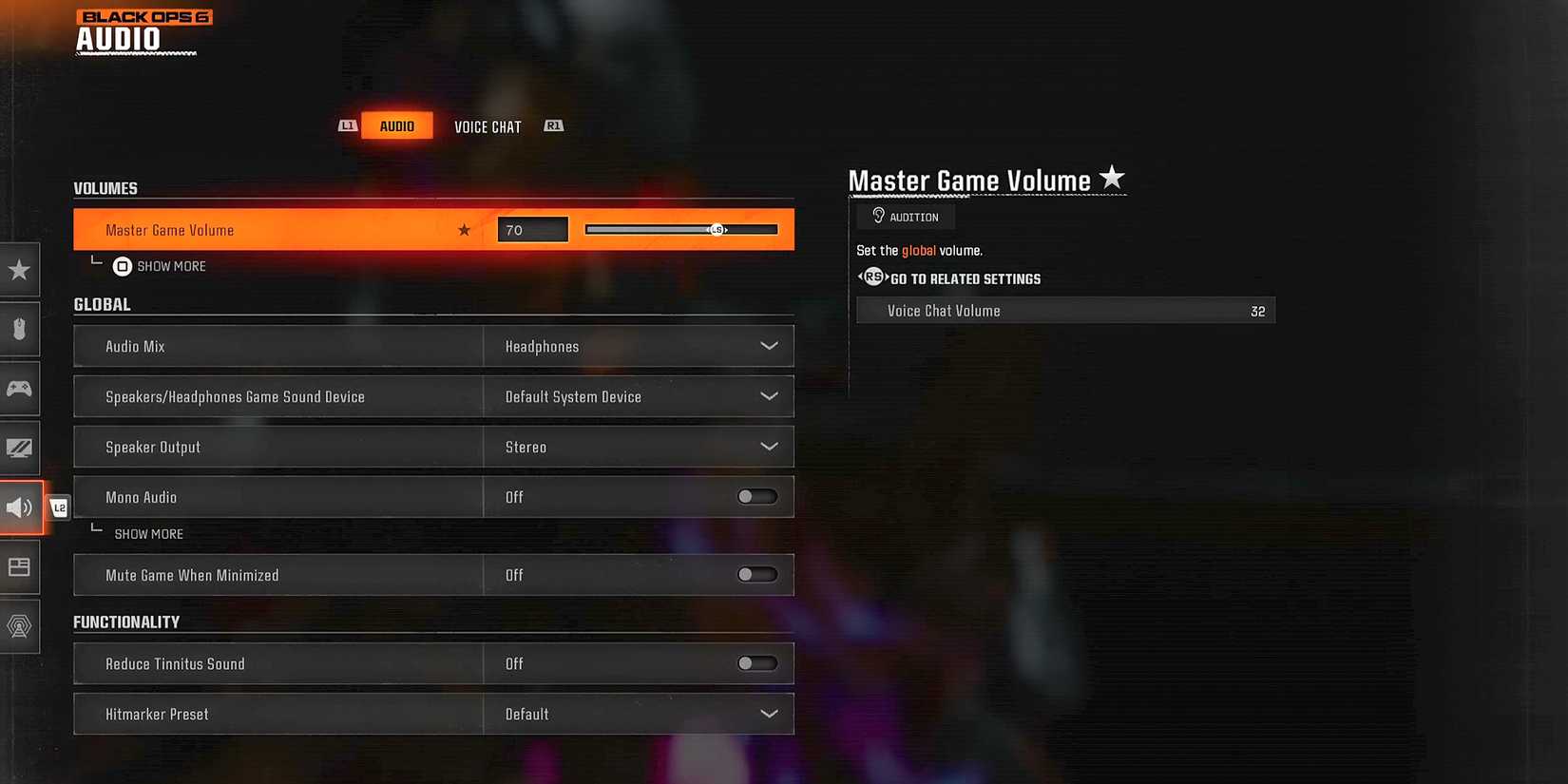
Please keep the following in mind: black ops 6 The audio settings described below may need to be adjusted to suit each player's specific hearing requirements. However, these settings are optimized to reinforce enemy footprints and highlight important information throughout gameplay.
volume
- master game volume – 70
- Gameplay music volume – 0
- conversation volume – 80
- effect volume – 100
- Cinematic music volume – 0
audio device
- Enhanced Headphone Mode – to
For optimal sound settings, it may be important to keep dialogue and effects volumes high. This allows you to clearly hear enemy footsteps during multiplayer and zombie gameplay and gain valuable information shared by your operators.
new black ops 6 An improved headphone mode that increases “directional accuracy of sounds played in a 360-degree world.” Once activated, all players will have access to Embody's Universal Profile, which is free and serves as your gateway to enhanced spatial awareness and precise 3D audio. But players can also access personalized profiles with spatial sounds tailored to their unique physiology. This option costs $19.99 USD (one-time payment) and is unlocked for 5 years.
global
- audio mix – Headphones
- Speakers/Headphones Game Sound Equipment – Default system device
- mono audio – turn off
- Mute licensed music – Off (recommended only for streamers/content creators)
- Asymmetric hearing compensation – Off (can be turned on if required, frequency strength must be configured)
- speaker output – Stereo
- Mute game when minimized – turn off
Pairing loud effects volumes with your headphones' audio mix is essential for detecting enemy footsteps and other important sounds that can help you survive. black ops 6. If you feel like your audio is lacking, consider switching to a headphone bass boost audio mix, which enhances bass frequencies while enhancing dynamic range and EQ for a more immersive experience.
craftiness
- Tinnitus reduction – Off (can be turned on if required)
- Heat marker presets – Basic/Classic
Voice chat
- Voice chat volume – 32
- Voice chat – to
- proximity chat – to
- body shield chat – to
- Last Words Voice Chat – turn off
- game voice channel – Party only
- Voice chat output device – Default system device
Voice chat is a playback option, but black ops 6It's important to balance your audio so it doesn't overwhelm other sounds when needed.
For melee chat, this can be a useful tool for tracking enemy play or engaging in communication (non-toxic, of course). However, you have the option to disable this feature if you find it intrusive or would prefer to communicate with your teammates through other means.
microphone
- microphone level – 100
- test microphone – turn off
- microphone mode – Push to Talk
- Mute yourself when connecting to a channel – turn off
- microphone input device – Default system device
How to enable volume equalization in Black Ops 6

- Open PC Settings and go to the Audio section.
- In the ‘Playback’ tab, find your audio device and right-click on it.
- Select ‘Properties’ and then go to the ‘Enhancements’ tab.
- Check the 'Loudness Equalization' checkbox and click 'Apply' to save the changes.
Loudness Equalization is a PC-specific audio setting. black ops 6 Amplifies the volume to improve the clarity of your footsteps. Turning this feature on will help you identify enemy movements more easily. This is essential for planning whether to push or take cover in all game modes, especially those with limited lives.

- released
- October 25, 2024
